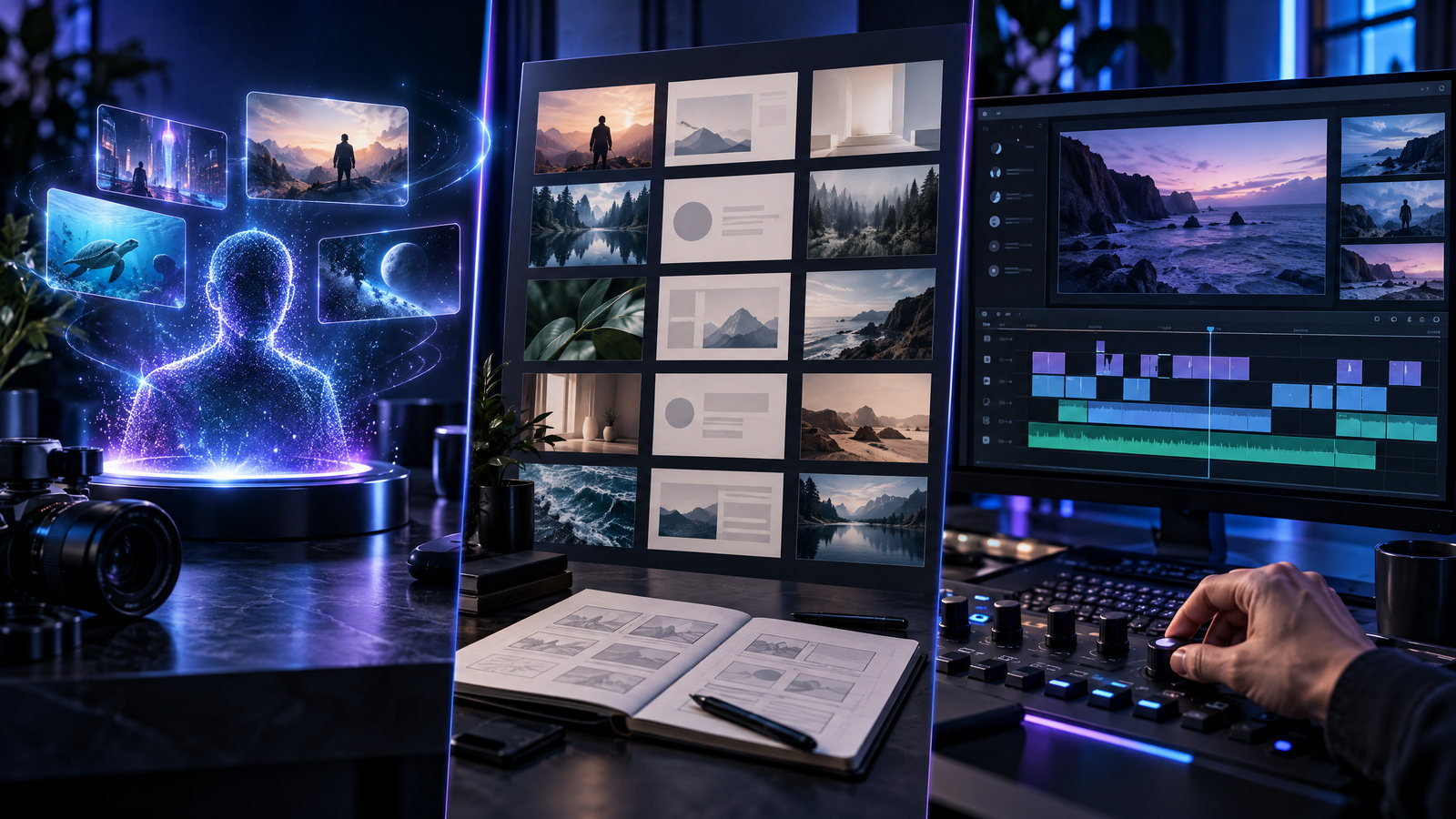
AI Video Generator vs. Template Editor vs. Manual Editing: A Decision Guide
If you’re starting on YouTube Shorts, TikTok, or Instagram Reels, the best workflow is one you can repeat without losing the idea, strong opening, or reason to keep watching. An AI video generator, a template editor, and a manual editor solve different problems. You don’t have to commit to just one.
What each workflow actually does
An AI video generator creates or assembles video material from prompts, scripts, images, or other inputs, depending on the tool. It can help you prototype an idea or create illustrative scenes without filming. Its main advantage is speed from brief to first draft. But generated footage may not match a specific action, look inconsistent between shots, or require several rounds of prompting and cleanup. Don’t assume every generator includes the same voice, editing, export, or commercial-use rights; check the exact product and plan terms.
A template editor starts with a prebuilt structure—such as a sequence of clips, titles, transitions, or placeholders—and lets you replace or adjust its pieces. It’s useful for recurring formats: a weekly tip, product roundup, quote, or “three things to know” Short. Adobe describes project templates as a way to streamline repeated work in Premiere, while YouTube’s creation resources include Shorts templates. Adobe’s project-template guide YouTube Shorts creation guide
Templates reduce setup and support visual consistency. They can also make different creators’ videos feel alike, and a fixed layout may not suit an unusual story. A template is a starting structure, not a substitute for choosing relevant visuals, checking captions, or shaping the message.
Manual editing means you select and arrange footage, audio, text, and timing yourself. It offers more control for a personal story, tutorial, review, or tight comedic beat. You can refine the opening frame, cut pauses, and time captions to the spoken words. The tradeoff is time: you need to learn the editor and make more decisions per video. For a beginner, “manual” can mean trimming phone footage and adding readable captions—not mastering a complex desktop timeline.
Compare the real costs, not just the sticker price
A free or low-cost tool can still cost time. Compare the workflow’s total production cost: subscription or usage limits; paid credits or storage; time spent generating and revising; learning time; device and export requirements; and the price or license terms of stock footage, music, fonts, and templates. For manual editing, include your time and any software or equipment you add. Prices and plan limits change, so check current terms rather than relying on a generic price comparison.
Before uploading a client clip, private recording, or voice sample, check the service’s privacy and data-use terms: what is stored, for how long, whether uploads may be used to improve services, who can access them, and how deletion works. For every workflow, confirm that you have permission to use footage, music, images, template elements, and a real person’s name, likeness, or voice. “AI-made” does not automatically mean rights-cleared.
In the U.S., copyright treatment of AI-assisted work depends on human creative contribution and the work itself. The U.S. Copyright Office says a prompt alone is not enough, while human-authored material or sufficiently creative human arrangement or modification may be protectable. Read the Office’s summary of its AI copyrightability report. That is not a blanket guarantee about a particular output or tool; keep records of your contributions and review the applicable terms.
A simple decision tree
Start with the footage you need:
- Does the video depend on real, specific footage—your process, product, hands, or a location? Film it yourself or use footage you have rights to, then edit manually or place it in a template. A generator may help with supporting visuals, but may not reliably show exact real-world details.
- Will you publish the same format repeatedly? Choose a template editor as your base. Build a reusable layout, then vary the hook, examples, and visuals so each post delivers a distinct idea.
- Do you need visuals you can’t easily film, and can you review the results? Test an AI generator for those shots. Keep a manual review step for accuracy, continuity, captions, and disclosure requirements.
- Still unsure? Make one short test in a hybrid workflow: write and narrate your own script, use a template for structure, and generate only one or two supporting visuals. Compare revision time and whether the final video feels specific to your channel.
If you use AI, check each platform’s current rules before posting. TikTok requires a label for AI-generated content containing realistic images, audio, or video, and encourages labeling content that is completely generated or significantly AI-edited. Its guidance also identifies some prohibited synthetic depictions. TikTok’s AI-generated content guidance. YouTube’s monetization policies say mass-produced, repetitive, or generic “inauthentic” content may be ineligible; automation is not a shortcut to eligibility or earnings. YouTube channel monetization policies
A practical starter stack
For your first month, keep the stack small: a notes app for ideas, your phone for original footage or voice, one editor you can operate comfortably, and a repeatable format. Track the time from script to export, note where revisions pile up, and save project versions and asset licenses. Add generation only when it solves a clear visual problem. Choose the workflow that helps you publish distinct, useful videos consistently—not the one that promises the most automation.